Run MITPO from the AI tool you already use
Ask Claude, Cursor or Codex for research, copy, creative and campaign plans. MITPO does the work and saves it in your account.
- Claude
- Claude Code
- Cursor
- VS Code
- OpenAI Codex
- Gemini CLI
Example
You
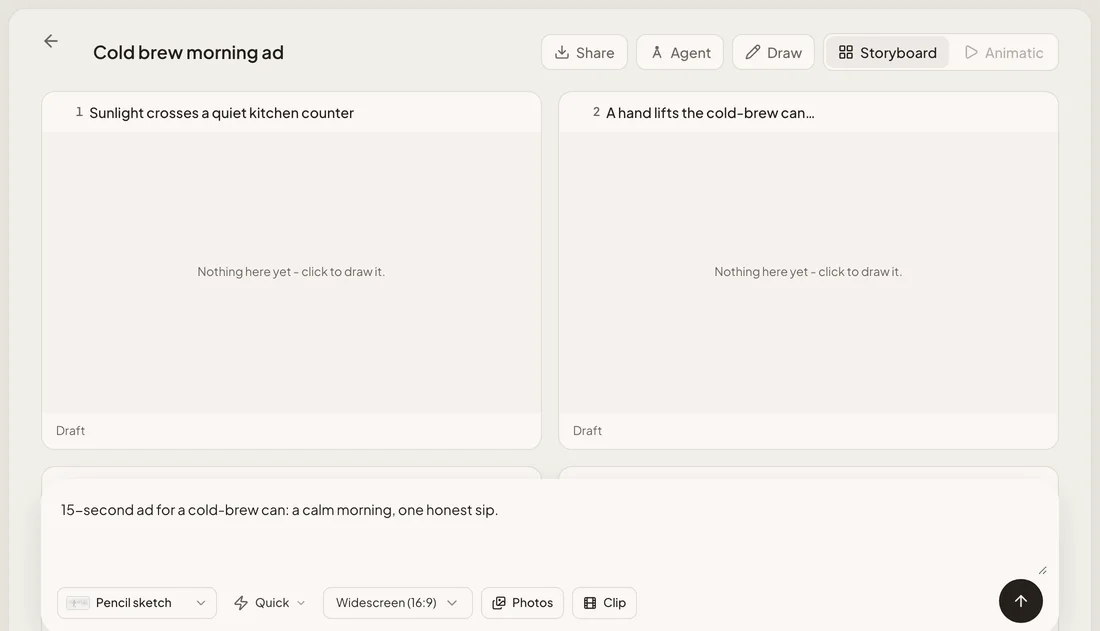
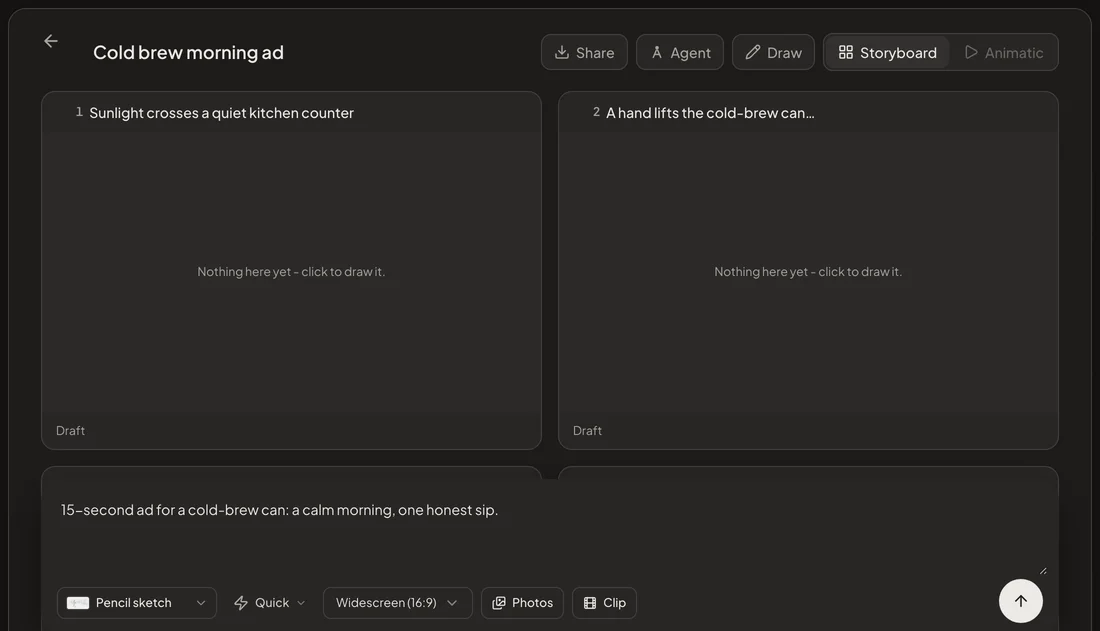
Plan a 15-second ad for our cold-brew can and save the storyboard in MITPO.
Your assistant
I wrote four frames for a calm morning and saved them in your MITPO account.
Cold brew morning ad · 4 frames · No credits used
Connect in about a minute
Pick your tool, paste one address and sign in. A free check at the end confirms it works.
MITPO address
https://mcp.mitpo.io/mcpAlready in an agent app? Let it set this upPaste one prompt into Claude Code, Codex, Cursor or Gemini CLI.
It adds MITPO using your tool’s own settings and never asks for a password or key. You still sign in yourself in the browser.
Set up the MITPO MCP server for me.

Address: https://mcp.mitpo.io/mcp (a remote server over streamable HTTP).

1. Work out which tool you are running in and add a server named "mitpo" using that tool's own command or config file:
   - Claude Code: claude mcp add --transport http mitpo https://mcp.mitpo.io/mcp
   - OpenAI Codex: codex mcp add mitpo --url https://mcp.mitpo.io/mcp
   - Gemini CLI: gemini mcp add --transport http mitpo https://mcp.mitpo.io/mcp
   - Cursor: add a "mitpo" entry with just "url" to mcpServers in .cursor/mcp.json (or ~/.cursor/mcp.json).
   - VS Code: add a "mitpo" entry with "type": "http" and the "url" to servers in .vscode/mcp.json.
2. Do not ask me for, or write down, any password, API key or token. MITPO signs me in through my browser.
3. When it is added, tell me the one step I need to do to sign in and wait for me to finish it.
4. Then check it works by asking MITPO: "Using MITPO, show my plan and credit balance." Do not run anything that spends credits.

Only change MCP settings, and show me any config change before you save it.
Claude on the web or the desktop app. Free plans can add one custom connector. On Team and Enterprise an owner adds it for the organization first, then each member connects.
- Open Claude connectors
Add it as a connector
Copy the MITPO address above. In Claude open Customize, then Connectors, then Add custom connector. Name it MITPO and paste the address.
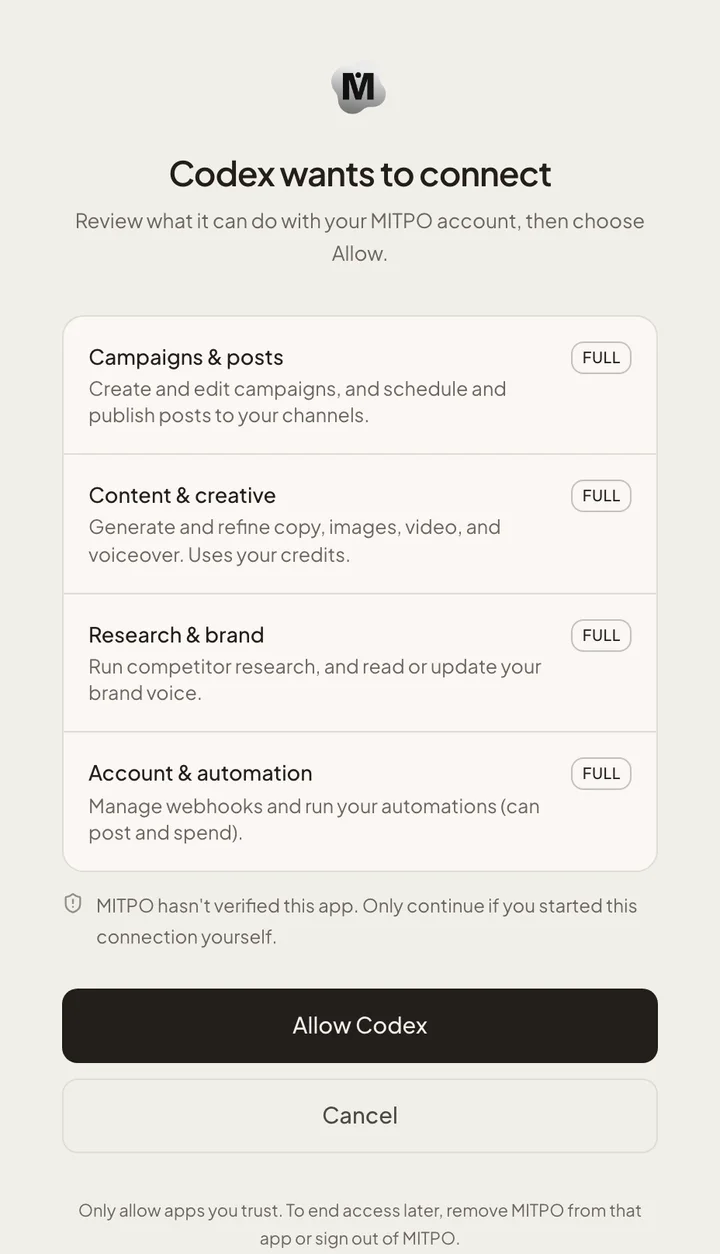
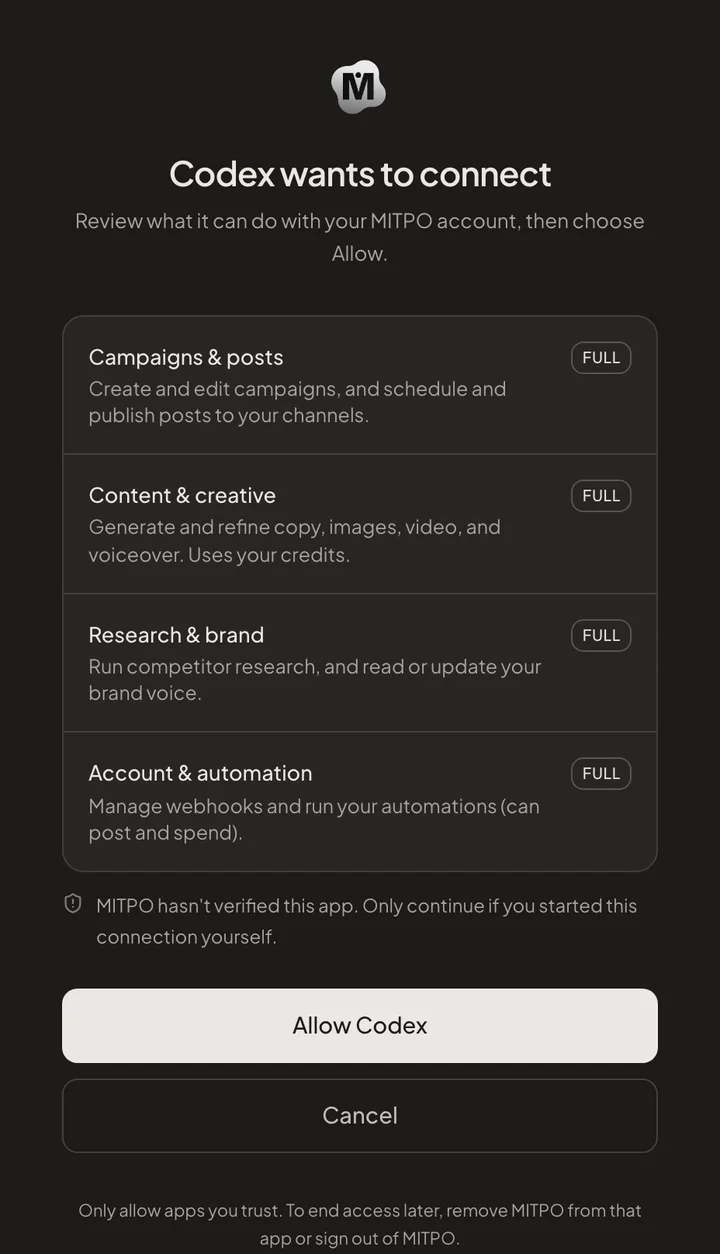
Sign in and allow
Log in to MITPO and review what Claude can do. Nothing runs until you allow it.
Check it works
Ask your assistant this. It only reads your account and costs nothing.
Your assistant asks. MITPO does the work.
You stay in the tool you like. MITPO keeps your brand, credits and saved work.
Connect once
Add MITPO to your AI tool and allow access. You only do this one time.
Ask in plain words
Ask for a competitor report, a week of posts or a storyboard. Your assistant does the thinking and MITPO does the work.
Find it in MITPO
Everything is saved in your library, with links back to MITPO to edit, review and publish.
Not sure what to ask? Start here.
Copy a request, paste it into your tool and watch it run.
Competitor report
Uses creditsSee how a rival positions, prices and ranks, in one report.
Using MITPO, research linear.app as a competitor and tell me where we can stand out.
Trends and signals
Uses creditsFind what your market is talking about right now.
Using MITPO, show the trends in project management software this week and one post idea for each.
Idea check
Uses creditsPressure-test a product or campaign idea before you build it.
Using MITPO, validate this idea: a subscription box for home cold-brew coffee.
Customer profiles
Uses creditsTurn a product into the people who would buy it.
Using MITPO, create two customer profiles for a budget running-shoe brand.
Copy in your voice
Uses creditsWrite and refine posts, emails and ads that sound like your brand.
Using MITPO, write three LinkedIn posts announcing our spring launch in our brand voice.
Brand voice
FreeRead the voice and facts your brand has saved, so every draft matches.
Using MITPO, read my brand voice and summarise it in five bullet points.
Images, video and voice
Uses creditsGenerate on-brand creative. You see a price and approve before anything runs.
Using MITPO, quote a square product photo of a cold-brew can on a kitchen counter.
Canvas boards
FreeSave a chain of creative steps as a board you can reopen and edit.
Using MITPO, create a canvas board with a product shot step followed by a lifestyle step.
Storyboards
FreePlan a video as frames, reorder them, and keep what you like.
Using MITPO, save a three-frame storyboard for a 15-second morning-coffee ad.
Motion films
FreeSave a motion composition, then quote a render when you are happy.
Using MITPO, save a short kinetic-text film that says Coffee arrives.
Campaign plans
FreeBuild, edit and review a campaign plan and its posts.
Using MITPO, create a five-day launch campaign plan for our new running shoe.
Review before posting
FreeSend posts for review. Nothing goes live without your approval.
Using MITPO, show which of my scheduled posts are waiting for review.
You stay in charge
You approve access
The allow screen lists what a tool can do before anything runs.
Price before spending
Generation and research show a price first. Nothing is charged until you confirm.
Posts wait for you
Anything meant for your channels goes to review first. Nothing goes live without your approval.
Connecting is free. Reading your account and saving or reopening boards cost nothing. Generating images, video, voice and copy, and running research, use your credits or plan allowance, the same as in the app. Your assistant shows the price first and waits for your approval.
Claude on the web and desktop, Claude Code, Cursor, VS Code, OpenAI Codex and Gemini CLI have steps on this page. Any other tool that supports remote MCP and can open a browser for sign-in should also work.
Posts go to review in MITPO first. Nothing goes live without your approval.
Remove MITPO from that tool, or sign out of MITPO. A tool stops working when the sign-in that approved it ends.
Whatever MITPO returns to your assistant, such as your brand voice or a report, goes to that tool under its own privacy terms. Connect only tools you trust with that information.
Not yet. Sign-in happens in a browser, so connect from a computer that has one.
Try it with your own brand
Create a free account, connect your tool and ask for your first plan.